
FluentRead - Open-Source Translation
FluentRead Tutorial — An open-source browser translation extension that supports 20+ translation engines and AI large models. Integrate with MoleAPI for an immersive bilingual reading experience.
🌊 FluentRead is an open-source browser translation extension dedicated to delivering a native-language reading experience.
- Project repository: https://github.com/Bistutu/FluentRead
🌟 Key Features
Intelligent Translation Engines
- Multi-engine support: Supports 20+ translation engines
- Traditional translation: Microsoft Translator, Google Translate, DeepL, and more
- AI large models: OpenAI, DeepSeek, Kimi, Ollama, and more
- Custom engines: Supports custom translation service configuration
Immersive Reading Experience
- Bilingual comparison: Source text and translation are displayed side by side for easier reading
- Selection translation: Select any text to get instant translation results
- One-click copy: Quickly copy translated text to improve reading efficiency
- Full-page translation: Translate the entire webpage with one click via the floating button, without refreshing the page
Privacy and Customization
- Privacy protection: All data is stored locally, with open-source and transparent code
- Highly customizable: Rich customization options to meet different use cases
- Completely free: Open-source, free, and non-commercial
📦 Installation
| Browser | Installation Method |
|---|---|
| Chrome | Chrome Web Store | China mirror |
| Edge | Edge Add-ons |
| Firefox | Firefox Add-ons |
🚀 Configuration
Import Configuration from the MoleAPI Console (Recommended)
After installing the FluentRead extension in your browser, opening the MoleAPI Console -> Token Management page will trigger a prompt to add FluentRead.
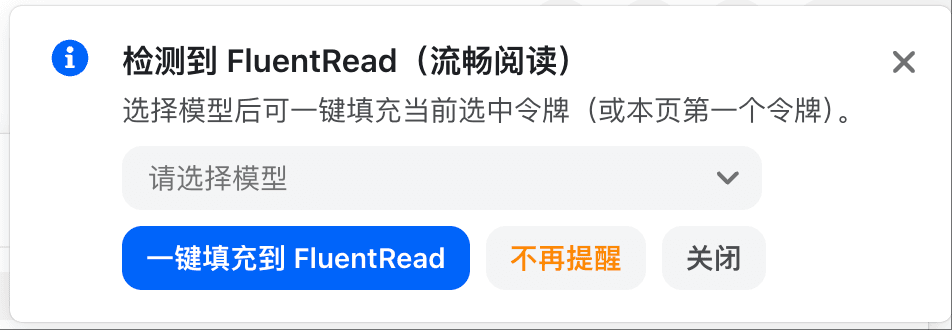
After selecting a model, click One-click fill into FluentRead. A confirmation window will appear so you can verify that the information is correct.
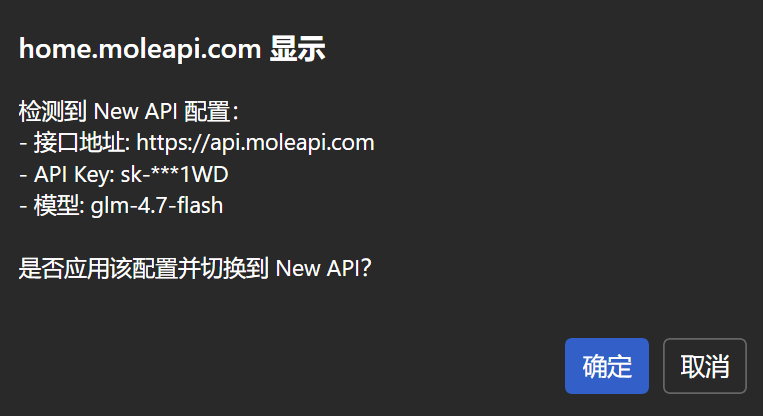
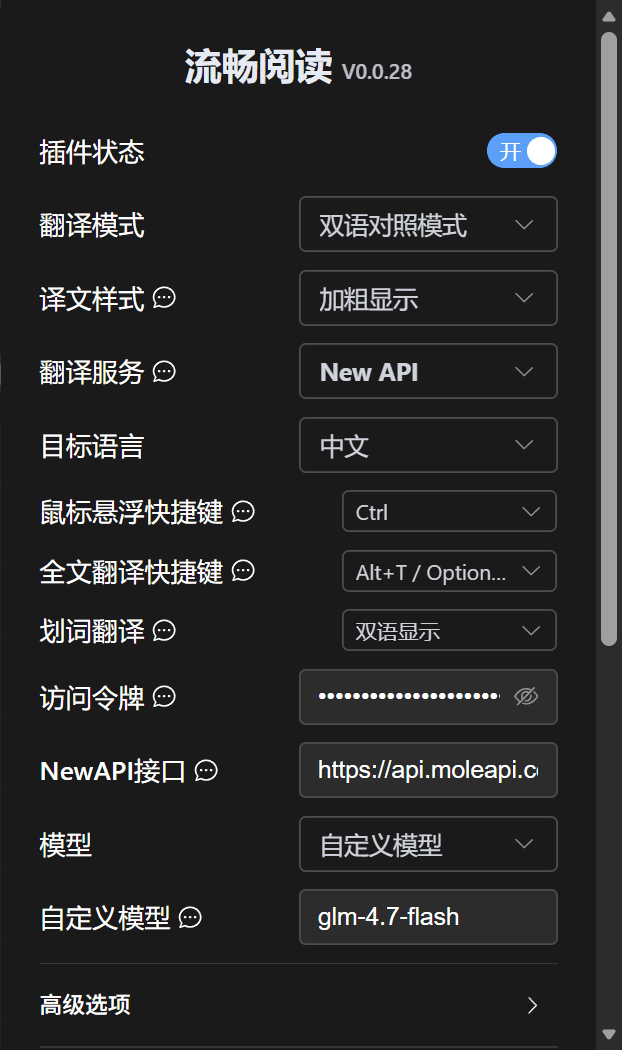
After confirming the import, the MoleAPI configuration in FluentRead will be enabled.
Import window did not appear?
If the import confirmation window does not appear, you can also manually fill in the relevant information in FluentRead according to the configuration table above.
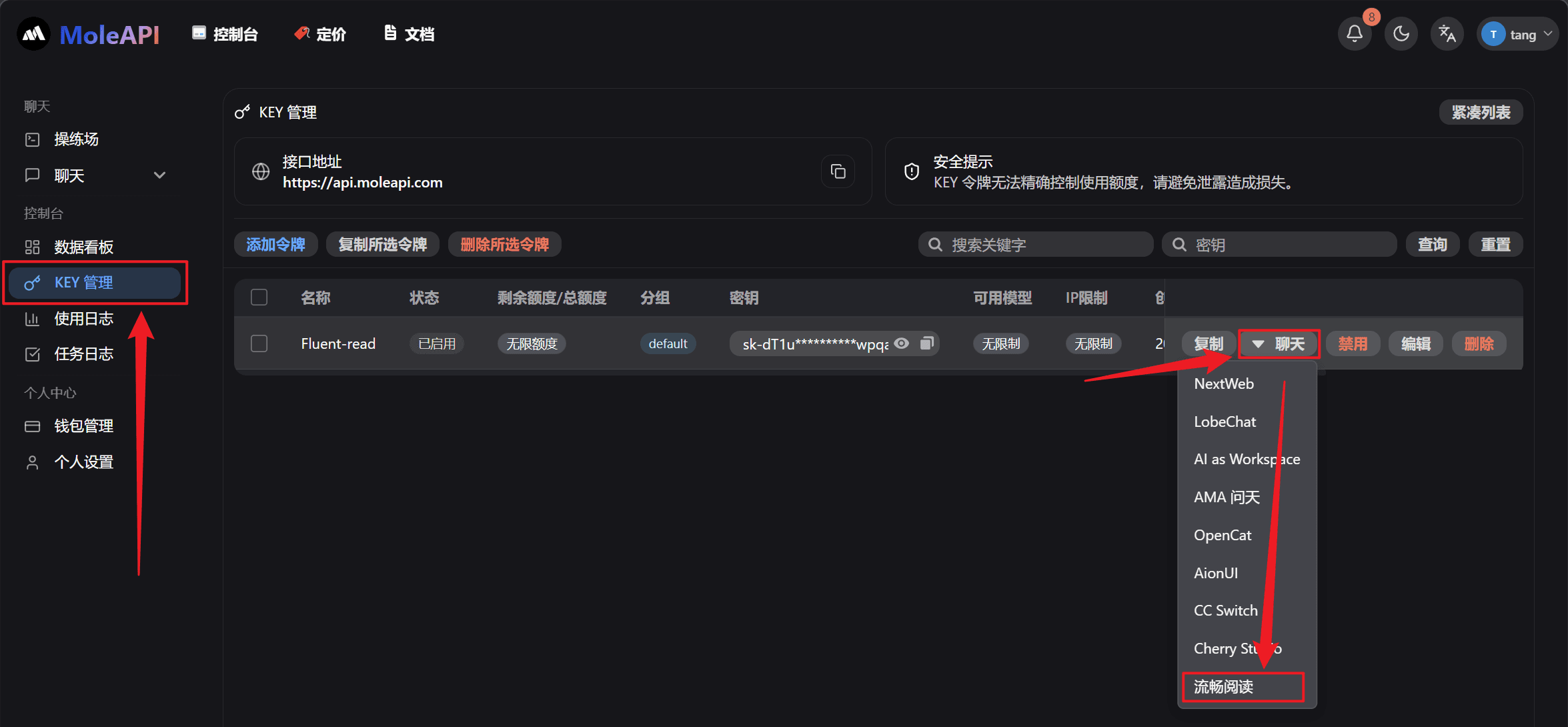
Fill in the Configuration Manually
Of course, you can also configure it manually:
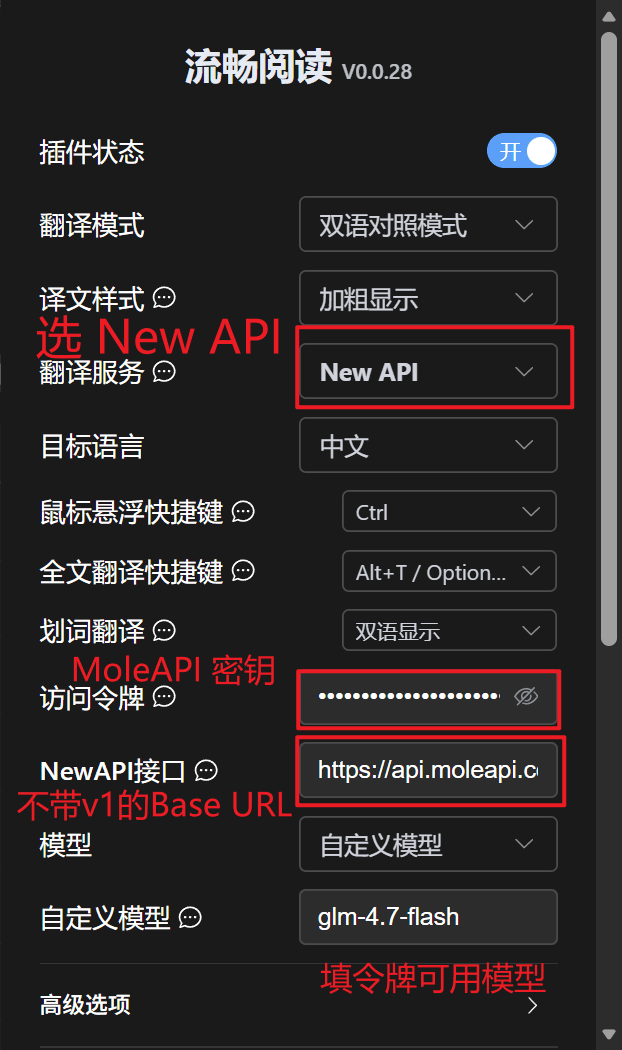
| Configuration Item | Value |
|---|---|
| Translation Service | MoleAPI |
| Access Token | MoleAPI key |
| MoleAPI Endpoint | MoleAPI deployment address (without /v1) |
| Model | Select from the list, or use a custom model |
| Custom Model | Model name |
How is this guide?
Last updated on
Cherry Studio - Desktop AI Client
Cherry Studio Tutorial — Connect the desktop AI client to MoleAPI and fill in the API Key with one click. Built in with 30+ professional AI assistants covering a wide range of work scenarios.
OpenClaw - Self-Hosted AI Assistant
OpenClaw Tutorial — Install OpenClaw, connect to New API, and quickly build a self-hosted AI assistant. An open-source project with support for multi-channel integrations such as Lark, Discord, and Slack.