
Cherry Studio - Desktop AI Client
Cherry Studio Tutorial — Connect the desktop AI client to MoleAPI and fill in the API Key with one click. Built in with 30+ professional AI assistants covering a wide range of work scenarios.
🍒 Cherry Studio is a powerful desktop AI client designed for professional users. It integrates 30+ industry-specific intelligent assistants to meet the needs of various work scenarios and significantly improve productivity.
- Official website: https://cherry-ai.com
- Download: https://cherry-ai.com/download
- Official documentation: https://docs.cherry-ai.com
How to Connect to MoleAPI
Quick Access Setup
On the Key Management page in MoleAPI, find the corresponding Key, click the Chat button on the right,
and select Cherry Studio to jump to Cherry Studio with one click and automatically fill in the connection information.
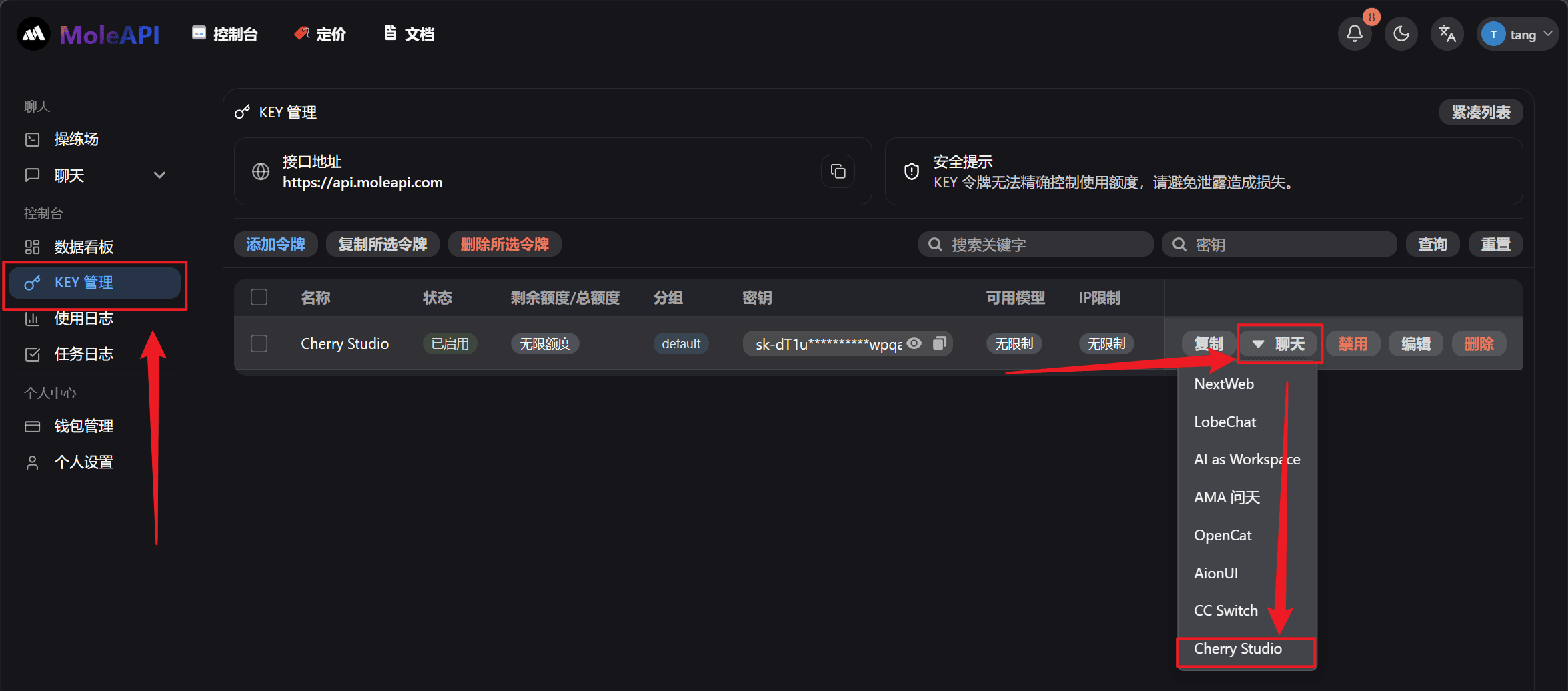
Of course, you can also configure it manually:
Parameter Configuration
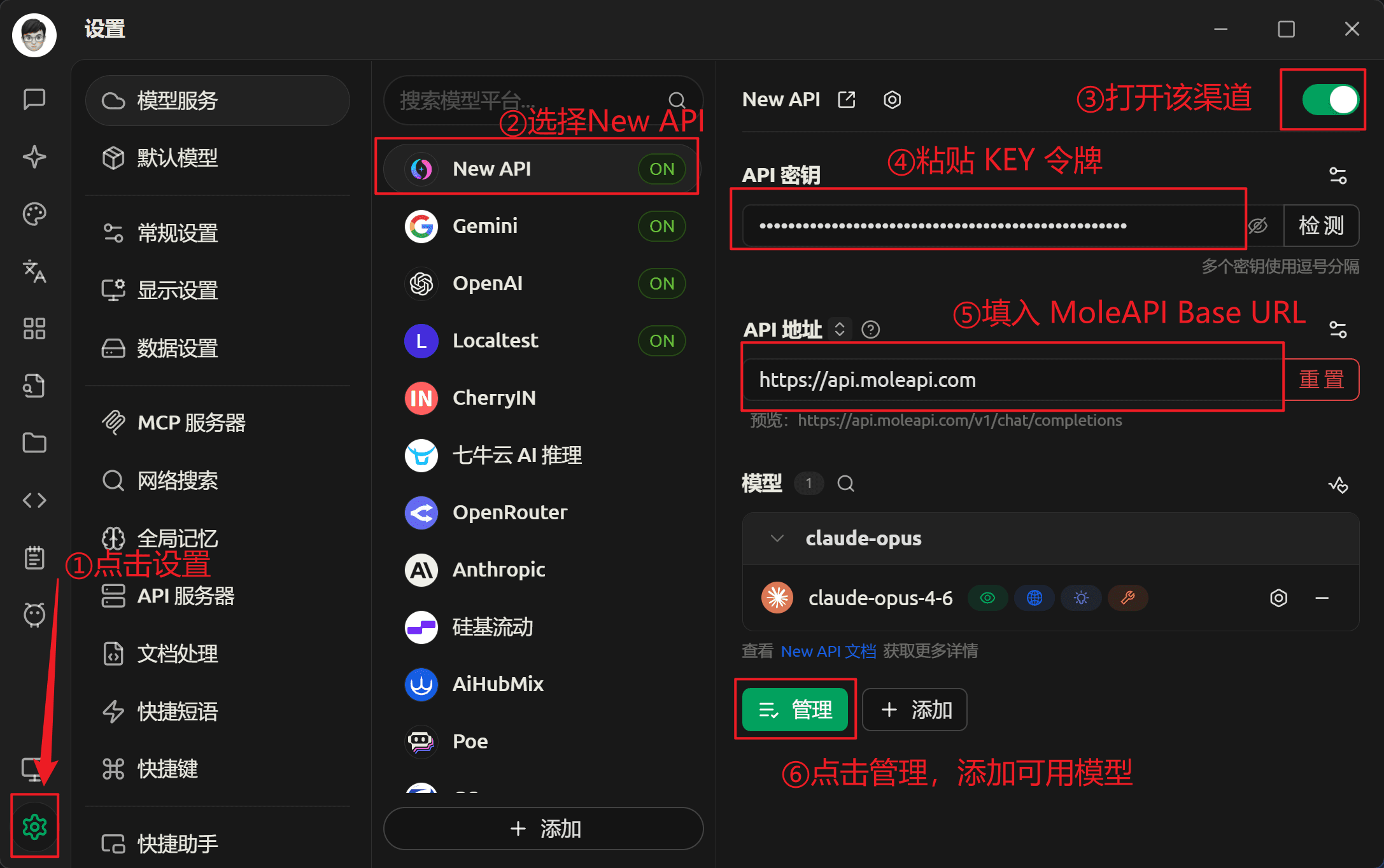
Provider type: Type supported by NewAPI
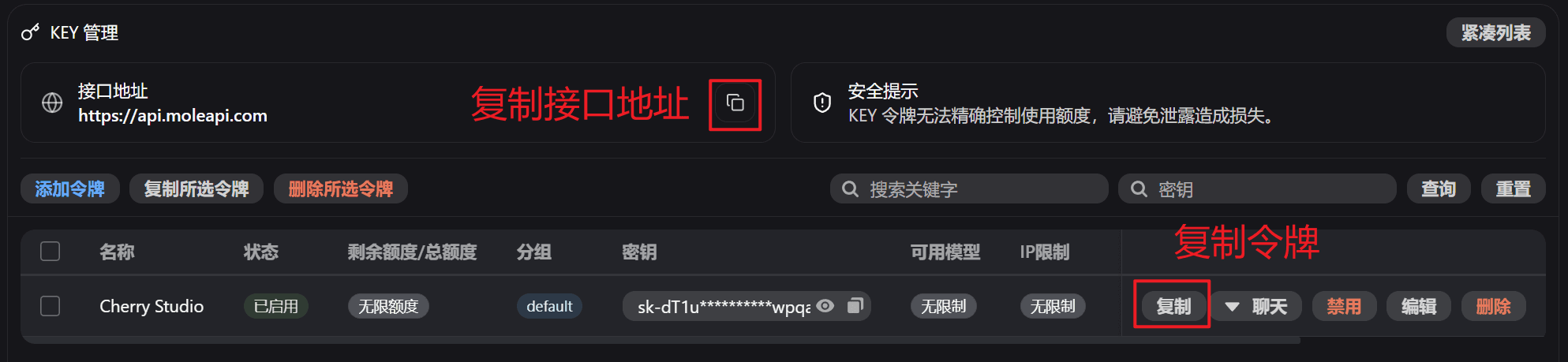
API Key: Obtain from MoleAPI
API URL: https://api.moleapi.com
Step-by-Step Guide
-
Copy the API key in MoleAPI
-
Add a provider
-
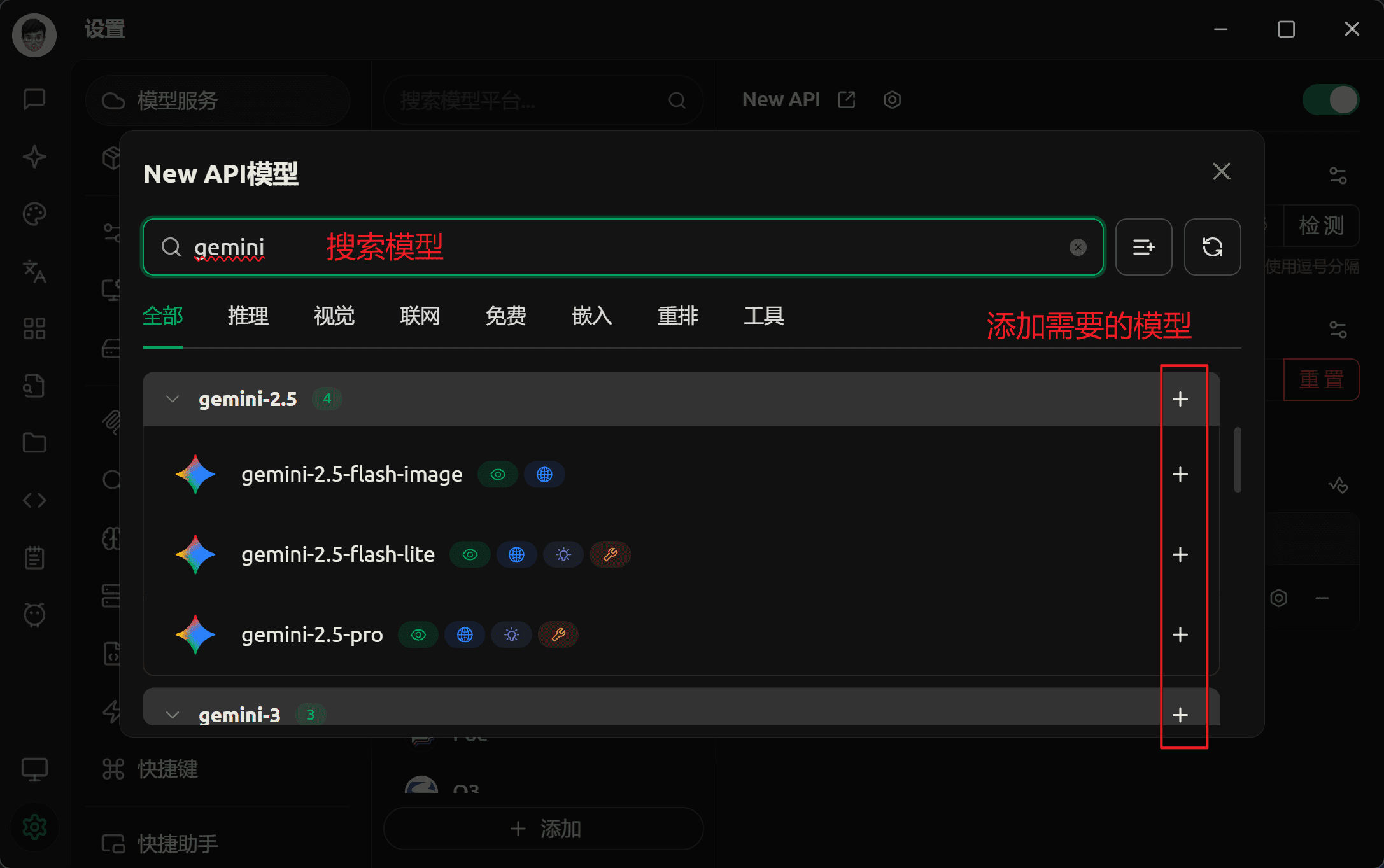
Add models
-
Return to the chat page
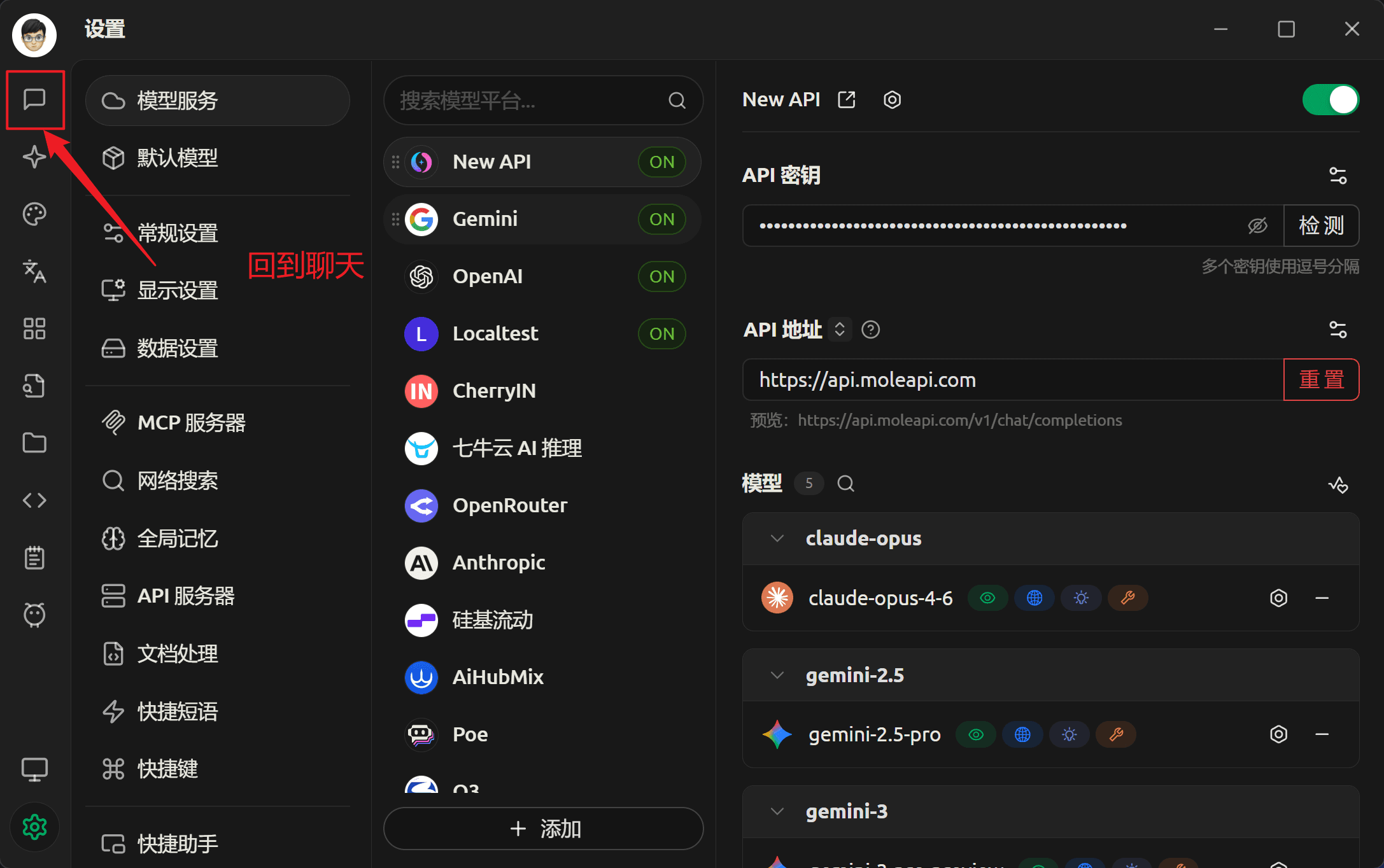
-
Switch to a MoleAPI model
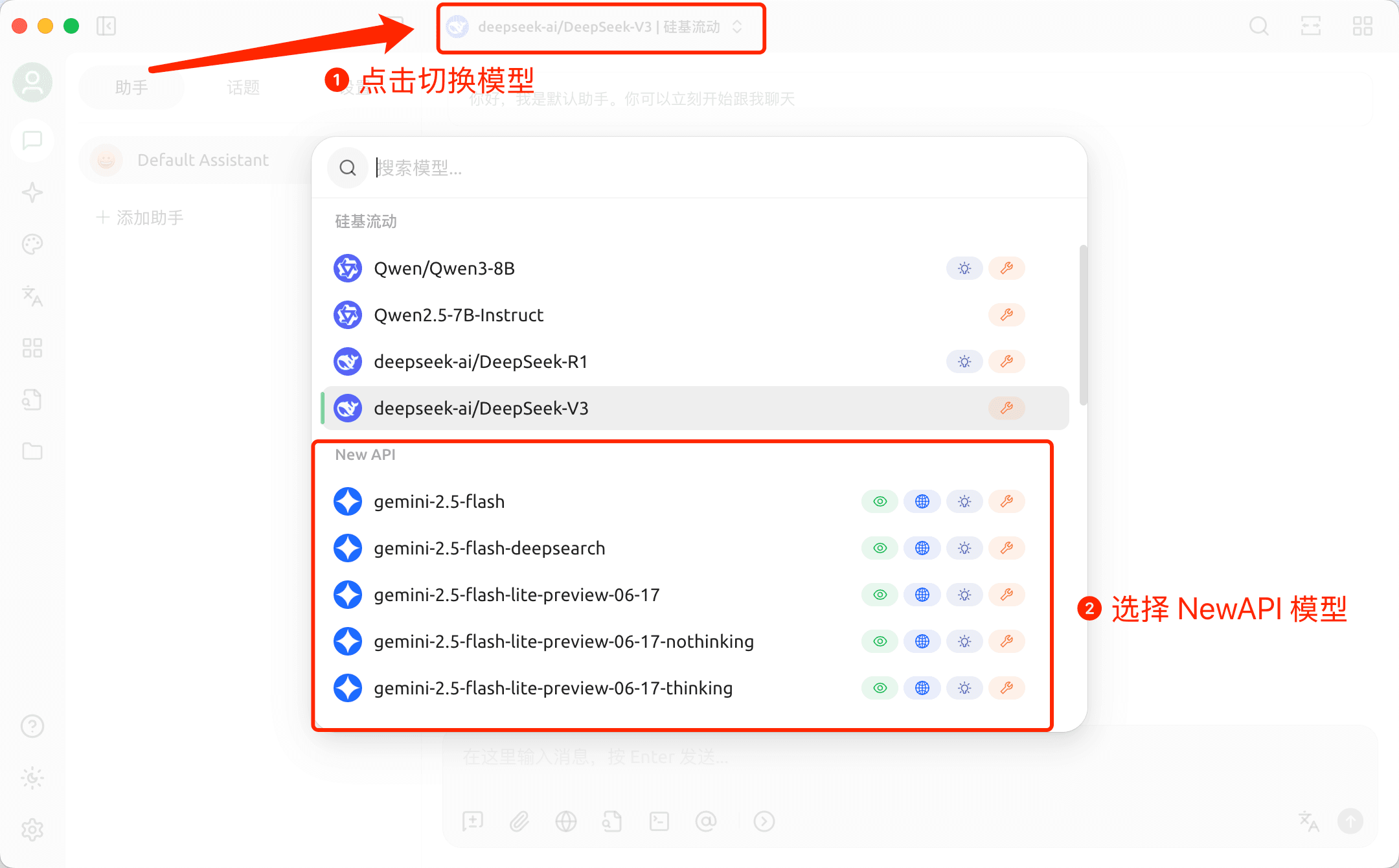
Generate Images in Cherry Studio
-
First, add a model that supports image generation
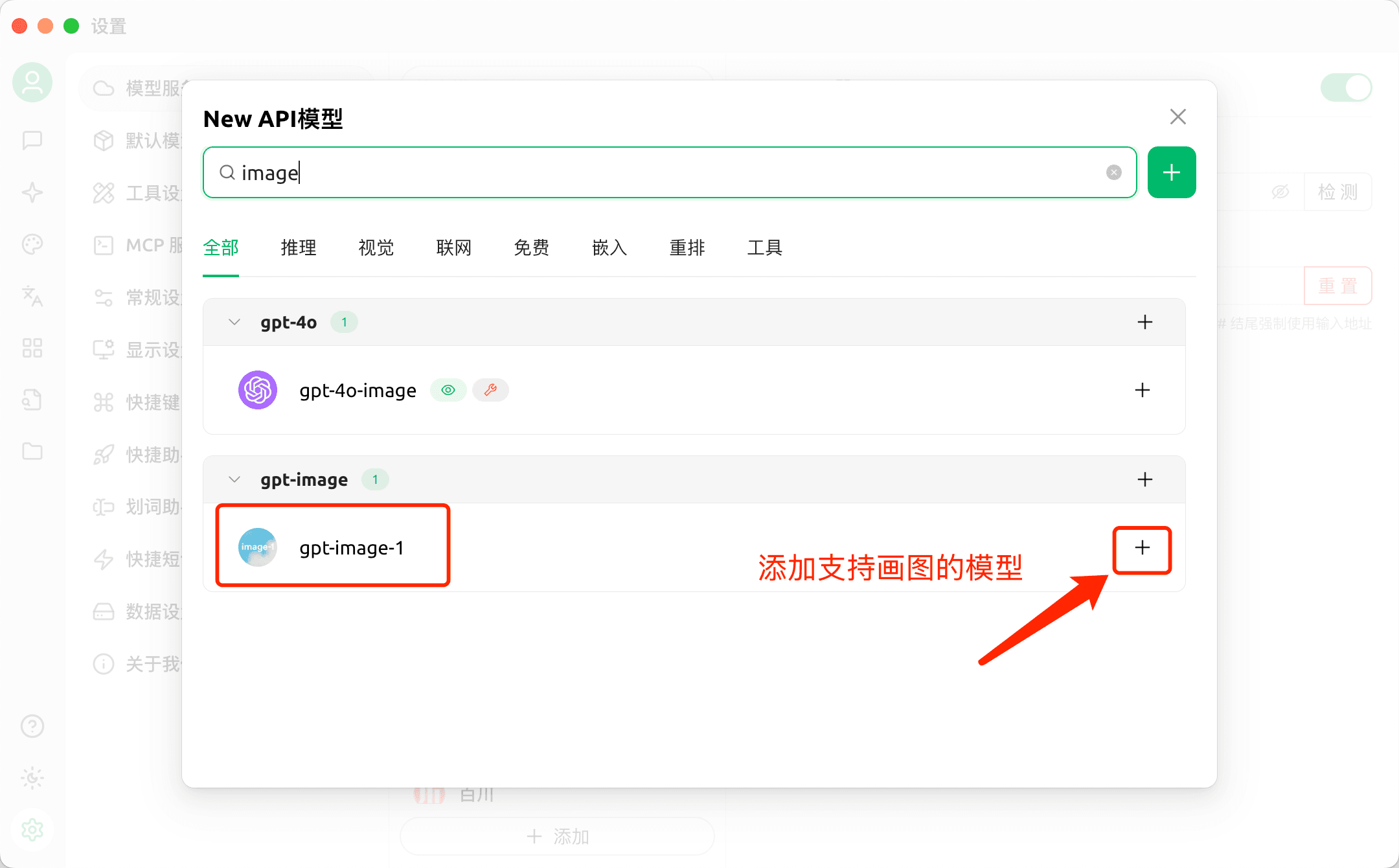
-
Generate images
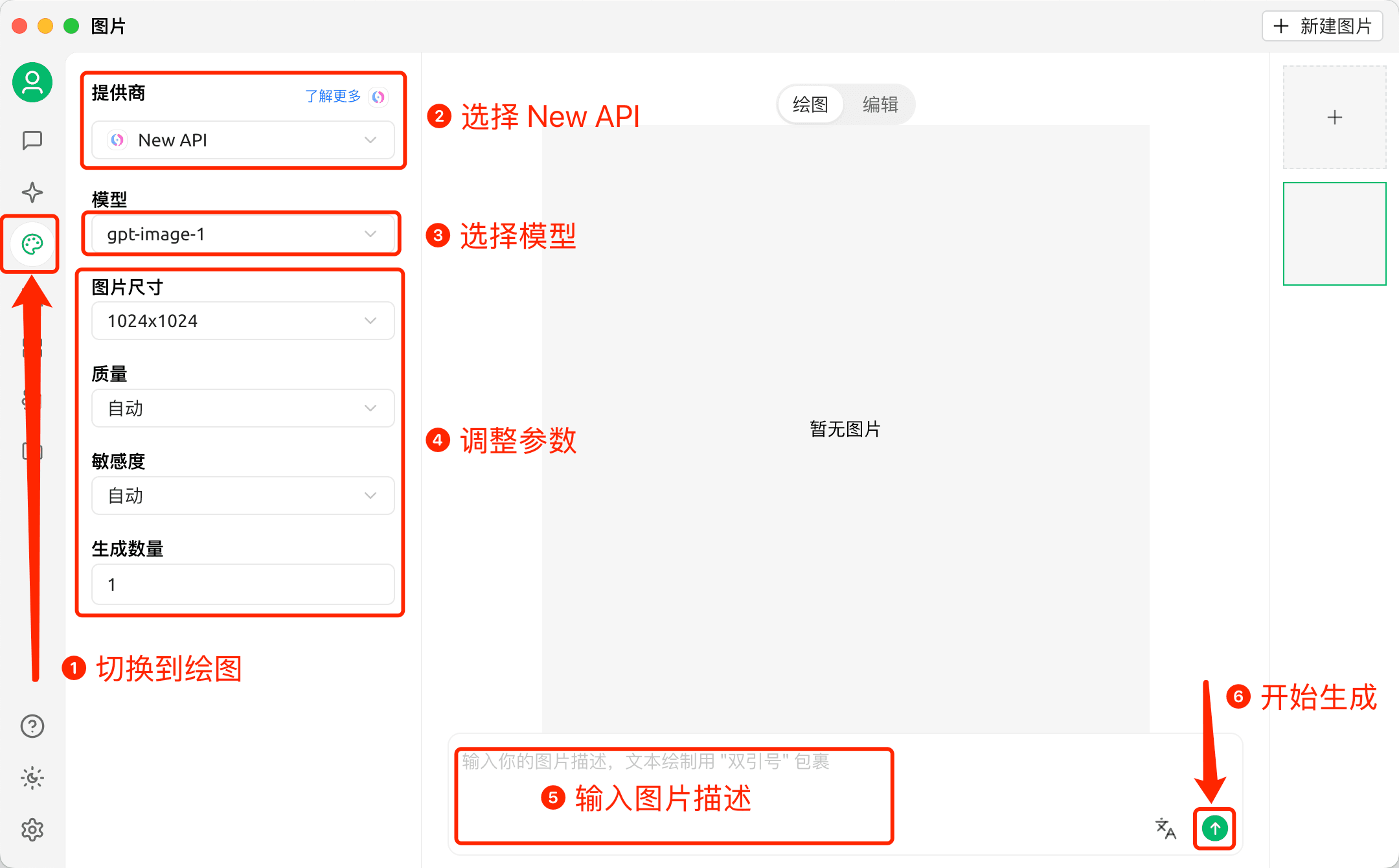
Additional Notes
If you find that tool cannot be called properly when using the native NewAPI interface, you can click API URL and switch the interface type to the Anthropic interface. This usually provides better tool-calling compatibility and supports more tools and MCP capabilities.
More specifically, since MoleAPI also supports the OpenAI Responses interface, Gemini interface, and Anthropic interface, you can also add it directly as a Gemini, OpenAI, or Anthropic provider for a better experience, such as more complete support for features like tool call and MCP.
How is this guide?
Last updated on
CC Switch - Unified AI CLI Management Tool
CC Switch Guide — A cross-platform AI CLI management tool for centrally managing Provider configurations, MCP servers, and system prompts for Claude Code, Codex, and Gemini CLI. Connect to MoleAPI and fill in settings with one click.
FluentRead - Open-Source Translation
FluentRead Tutorial — An open-source browser translation extension that supports 20+ translation engines and AI large models. Integrate with MoleAPI for an immersive bilingual reading experience.