
AionUi - Free and Open-Source Desktop Productivity Agent
AionUi Tutorial — A free, open-source desktop productivity Agent that supports Gemini CLI, Claude Code, Codex, and more AI agents. Connect to MoleAPI to enable multi-model workflows.
🚀 AionUi is a free, local, open-source Cowork that supports multiple AI agents, including Gemini CLI, Claude Code, Codex, OpenCode, Qwen Code, Goose CLI, Auggie, and more. It provides a complete GUI and WebUI remote access capabilities, making it an open-source alternative to Cowork.
- Official website: https://www.aionui.com
- GitHub repository: https://github.com/iOfficeAI/AionUi
- Download: https://github.com/iOfficeAI/AionUi/releases
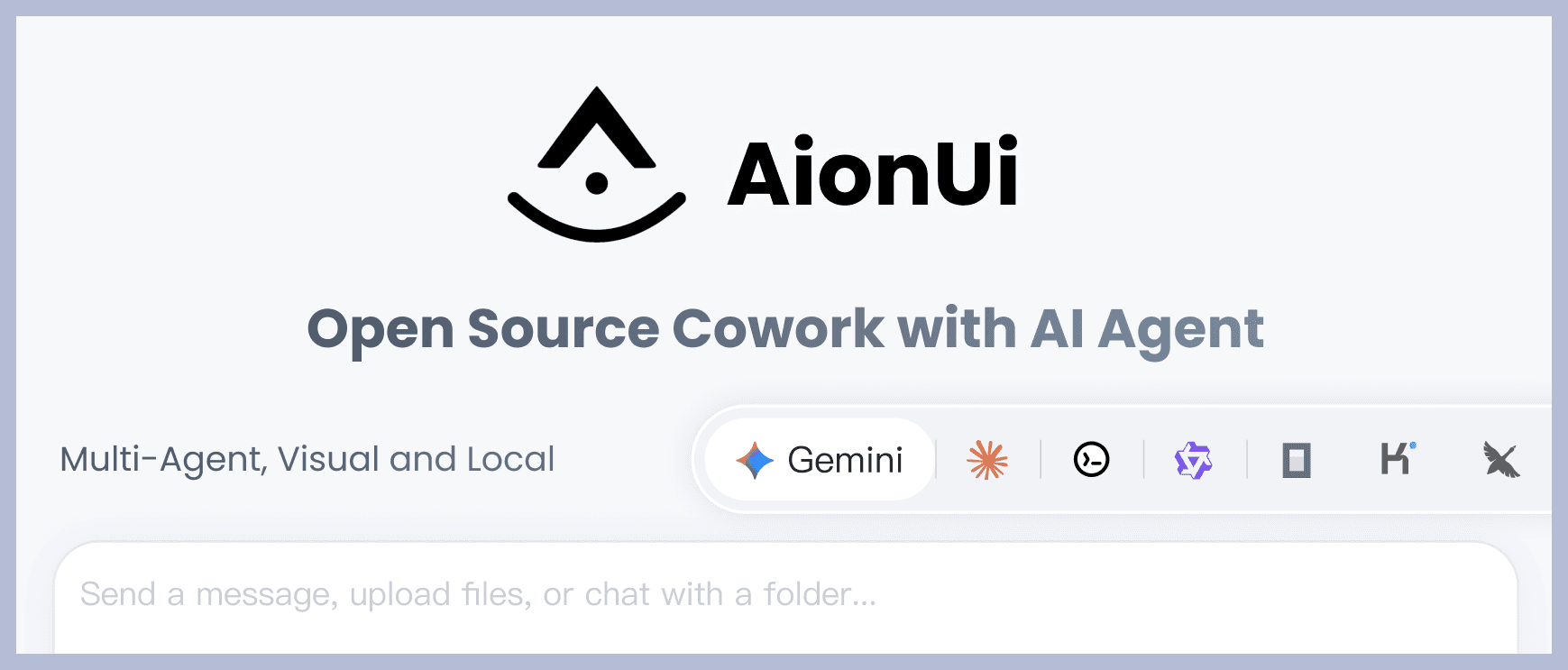
Core Features
💬 Multi-Session Chat
- Multiple sessions + isolated context - Open multiple chat sessions at the same time, with each session maintaining its own independent context memory
- Local storage - All conversation data is stored in a local SQLite database and will not be lost
🤖 Multi-Model Support
- Multi-platform support - Supports mainstream models such as Gemini, OpenAI, Claude, and Qwen, with flexible switching
- Local model support - Supports local model deployment through Ollama, LM Studio, and more
🤝 Multi-Agent Mode
- Run multiple AI agents simultaneously - Run multiple AI agents at the same time, such as Gemini CLI, Claude Code, Codex, OpenCode, Qwen Code, Goose CLI, Auggie, and more
- Unified MCP management - Use Model Context Protocol (MCP) to centrally manage and configure all agents, simplifying operations
- Skills configuration - Supports configuring dedicated Skills for different agents to extend their capabilities
- Assistant customization - Supports custom assistant configurations to build personalized AI workflows
- Independent configuration - Each agent can be configured and used independently without affecting others
- Flexible switching - Switch flexibly between different agents to meet various use cases
🗂️ File Management
- File tree browsing + drag-and-drop upload - Browse files like folders and import files or folders with one-click drag and drop
- Smart organization - Let AI help organize folders and automatically categorize content
📄 Preview Panel
- 9+ format previews - Supports PDF, Word, Excel, PPT, code, Markdown, images, and more
- Real-time tracking + editable - Automatically tracks file changes and supports real-time editing and debugging for Markdown, code, and HTML
🎨 AI Image Generation and Editing
- Smart image generation - Supports multiple image generation models, including Gemini 2.5 Flash Image Preview, Nano, Banana, and more
- Image recognition and editing - AI-powered image analysis and editing features
🌐 Multi-Channel Access
- WebUI remote access - Access it from any device on the network through a browser, including mobile devices
- Telegram integration - Supports interaction through a Telegram bot
- Feishu integration - Supports access and interaction through Feishu
- Local data security - All data is stored in a local SQLite database, making it suitable for server deployment
How to Connect MoleAPI
Parameter Fields
Provider type: A type supported by MoleAPI
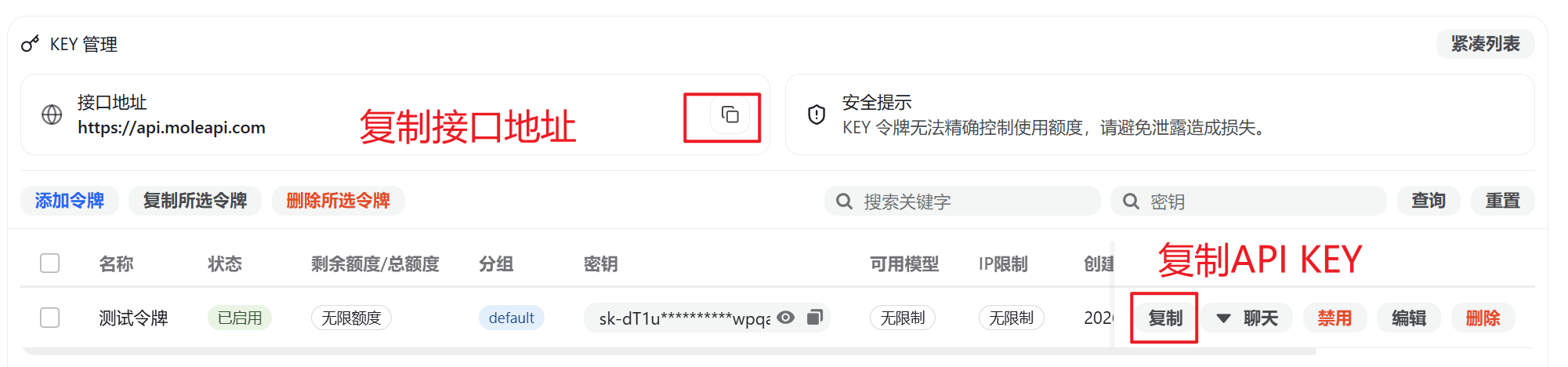
API key: Obtain from MoleAPI
API URL: MoleAPI site address (must include /v1 at the end, for example: https://api.moleapi.com/v1)
Make sure the API URL ends with /v1, otherwise the connection may fail.
Configuration Steps
-
Copy the API key from MoleAPI
-
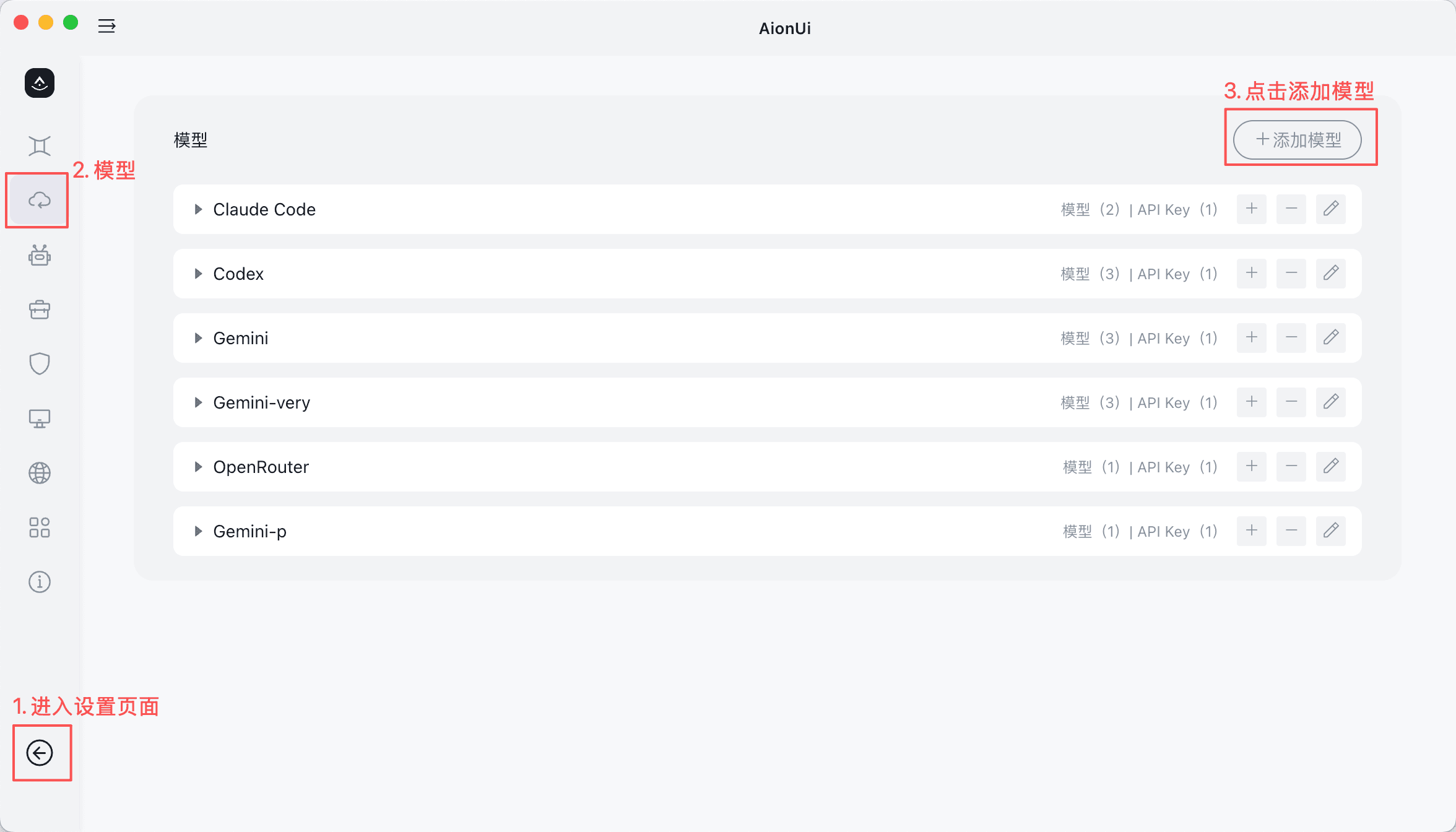
Open AionUi Settings
- Go to the settings page in AionUi
- Find the Model Configuration tab
- Click "Add Model"
-
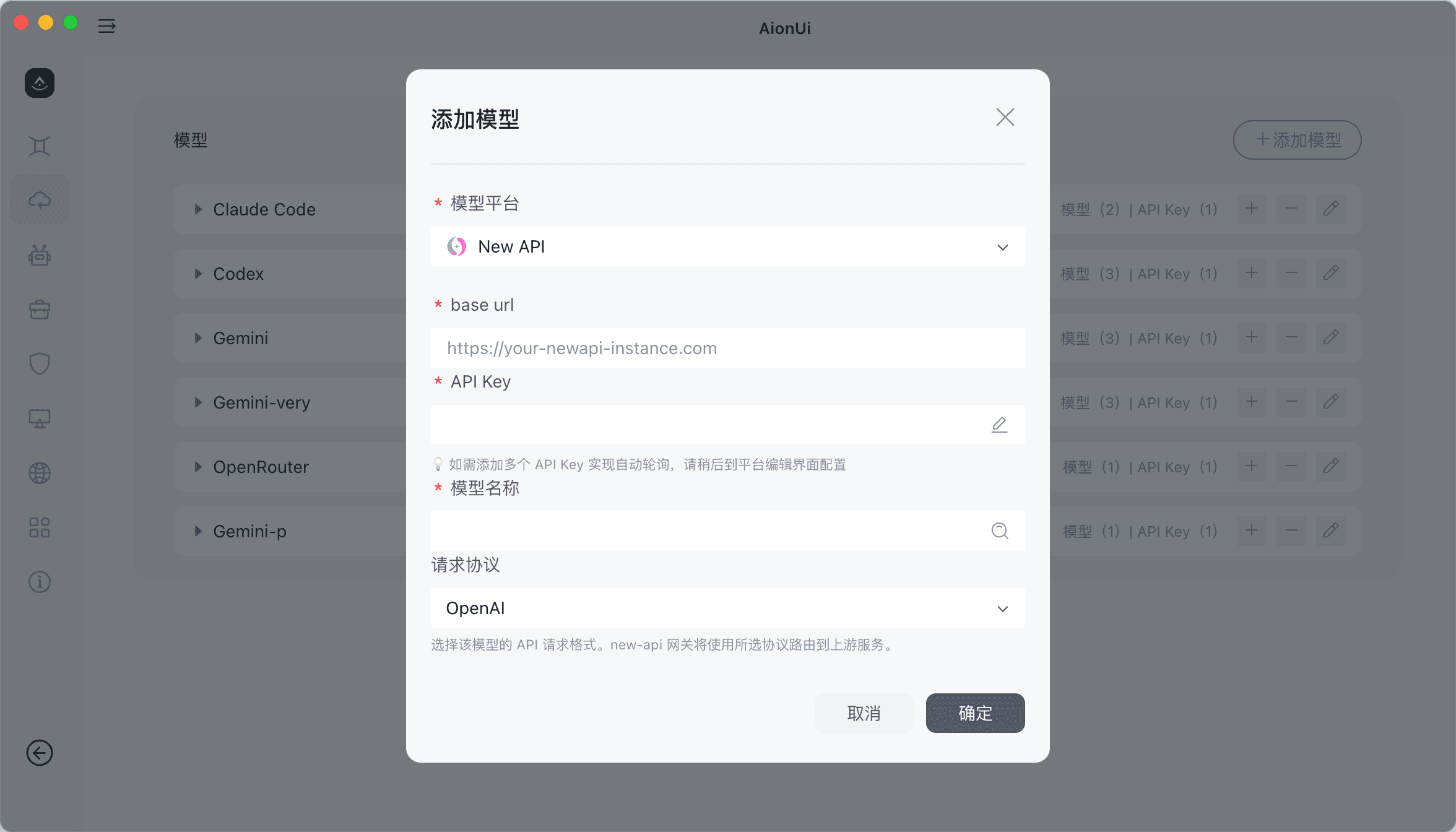
Add a new provider
- Click "Add Model"
- Select NewAPI
-
Configure API information
- API URL: Enter your MoleAPI site address (format:
https://api.moleapi.com/v1) - API key: Paste the API Key copied from the MoleAPI console
- API URL: Enter your MoleAPI site address (format:
-
Add a model
- Use the dropdown to select the model you want to add
- The model name should match the model name configured in MoleAPI
- Select the appropriate request protocol
-
Start using it
- Return to the chat page
- Select the configured MoleAPI model to start chatting
Related Links
How is this guide?
Last updated on
Codex App
Install and configure Mole API as the model provider in the Codex App. Sign in with your API Key and edit config.toml to get started.
CC Switch - Unified AI CLI Management Tool
CC Switch Guide — A cross-platform AI CLI management tool for centrally managing Provider configurations, MCP servers, and system prompts for Claude Code, Codex, and Gemini CLI. Connect to MoleAPI and fill in settings with one click.