
Playground
Verify that the model and Key work within the site before deciding how to integrate later
If you have already created an API Key but are not ready to start coding yet, the simplest way to validate it is to use the built-in Playground first.
Its value is not just to "chat a bit"—it helps you quickly confirm:
- Whether your current account can call models normally
- Whether the models available to your current group are working properly
- What the approximate response experience of a specific model is like
- Whether your basic configuration works end to end
Feature scope notice
The current Playground only supports the chat/completions endpoint. If you need to test advanced features such as Tool-Calling or Agents, please use code or third-party tools that support those features for now.
Where to find the Playground
From the console:
Playground- Direct URL: https://home.moleapi.com/console/playground
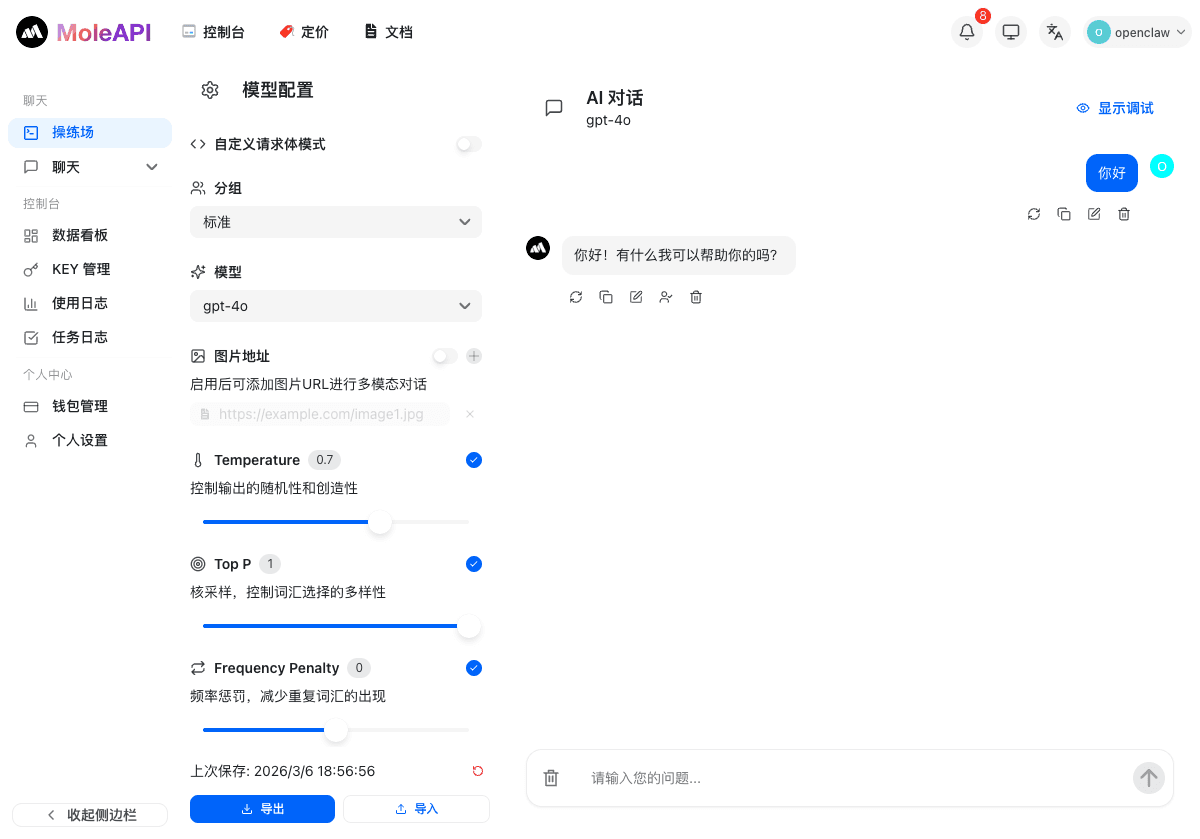
The actual page looks roughly like this:
How to understand this page
The page can generally be divided into two parts:
Left side: model configuration area
This area is mainly used to select and adjust:
- Group
- Model
- Whether to enable image input
- Parameters such as Temperature / Top P / Frequency Penalty
- Whether to enable streaming output
For beginners, the most important thing is not to fully understand every parameter right away, but to first complete these two tasks:
- Select a model that is currently available
- Send your first message and get a normal response back
Right side: chat area
This is the actual conversation area. You can enter prompts directly, observe the returned results, and evaluate:
- Whether responses are working normally
- How fast the responses are
- Whether the output style matches your expectations
Recommended way for beginners to use the Playground
It is recommended to test in this order:
- First select a general-purpose text model
- Do not rush to change too many parameters
- Start with the simplest possible message, such as "Hello"
- After you can get stable responses, gradually try more complex prompts
The benefits of doing this are:
- It helps you distinguish whether "the platform works" or "there is a problem in your later code"
- It lets you quickly determine whether the model/group is available
- It allows you to validate the experience before integrating with an external client
If the Playground works normally, what does that mean?
If you can already have stable conversations here, it usually means:
- Your account and basic permissions are fine
- The platform can currently call this model normally
- If you later fail in a third-party app or in code, it is more likely to be an integration configuration issue
This is also why I recommend many beginners:
First make it work inside the site, then connect a third-party app or SDK.
Common issues
The Playground works, but a third-party client does not
Check these first:
- Whether the third-party client's Base URL is correct
- Whether the API Key was copied completely
- Whether the model name is exactly the same
- Whether the third-party tool supports the OpenAI-compatible API
A model cannot be selected in the Playground, or the result is not as expected
Check these first:
- Whether the current group supports that model
- Whether the model you selected is suitable for the current task
- Whether you accidentally changed too many parameters
What should I do if responses are very slow?
Do not assume there is a platform issue right away. Try these first:
- Switch to another model
- Switch to another group
- Test with a shorter prompt
- Avoid including an overly long context at the beginning
Most practical usage advice
The Playground is best used as a "pre-integration checkpoint" and a "model testing area," not just as a demo page.
What to read next
How is this guide?
Last updated on